
3. Collecting references
Section outline
-
Goals
- Collect references when consulting online resources
- Detect resources that do not work with Zotero
- Identify different collecting methods (not all of them)
- Identify the type of document collected and the métadata to be completed, if applicable
- Explain why I can or cannot automatically collect the PDF associated with the reference
-
In a nutshell
Keep Zotero and your browser open : remember to keep the Zotero software and your browser (Firefox, Chrome, or Safari) open, otherwise you will not be able to save a reference in the Zotero software (the database).
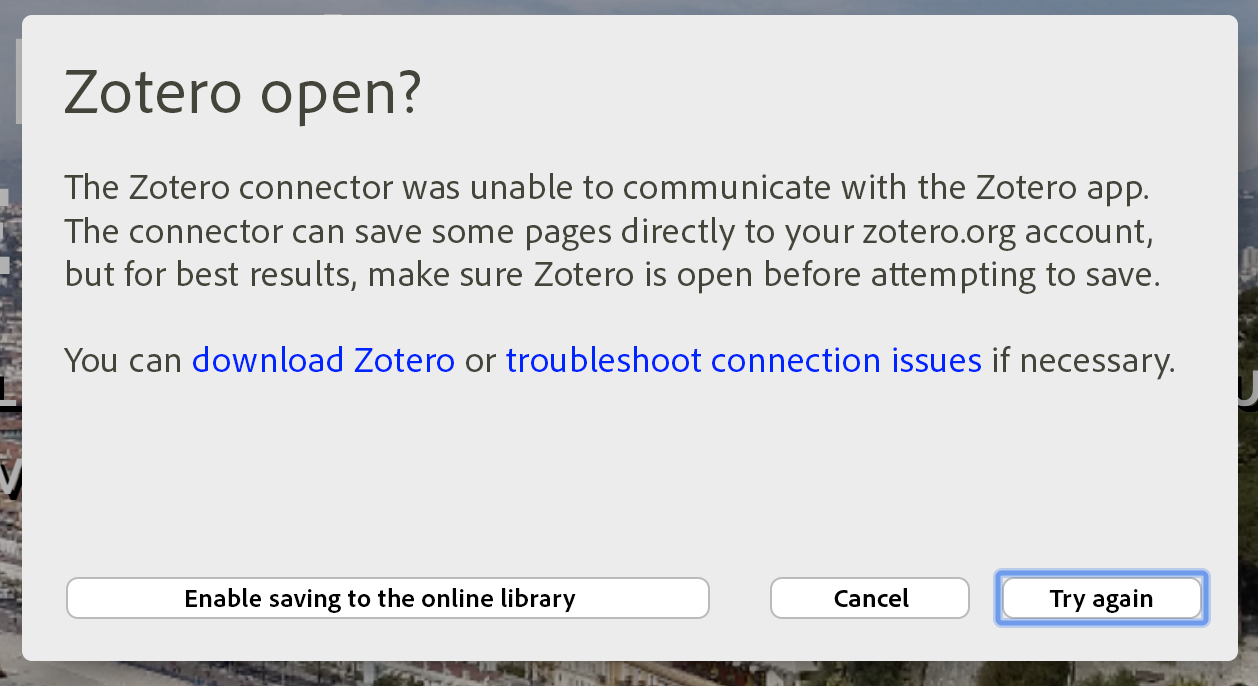
Zotero alert message indicating that the software is not open.
You can pin the software or browser to your taskbar, but do not close or exit either one. Also, remember to manage your windows: do not use full screen mode, but rather multi-window mode so that you can easily switch between Zotero and your browser with a single click.
-
Icon variations
The video shows how references are integrated according to document type (a text in a journal, a book in the Sudoc catalogue) or via a Folder icon (several types of references on Google Scholar). It should be noted that different icons appear depending on:
- the resource consulted ;
- the specific page consulted on the resource.
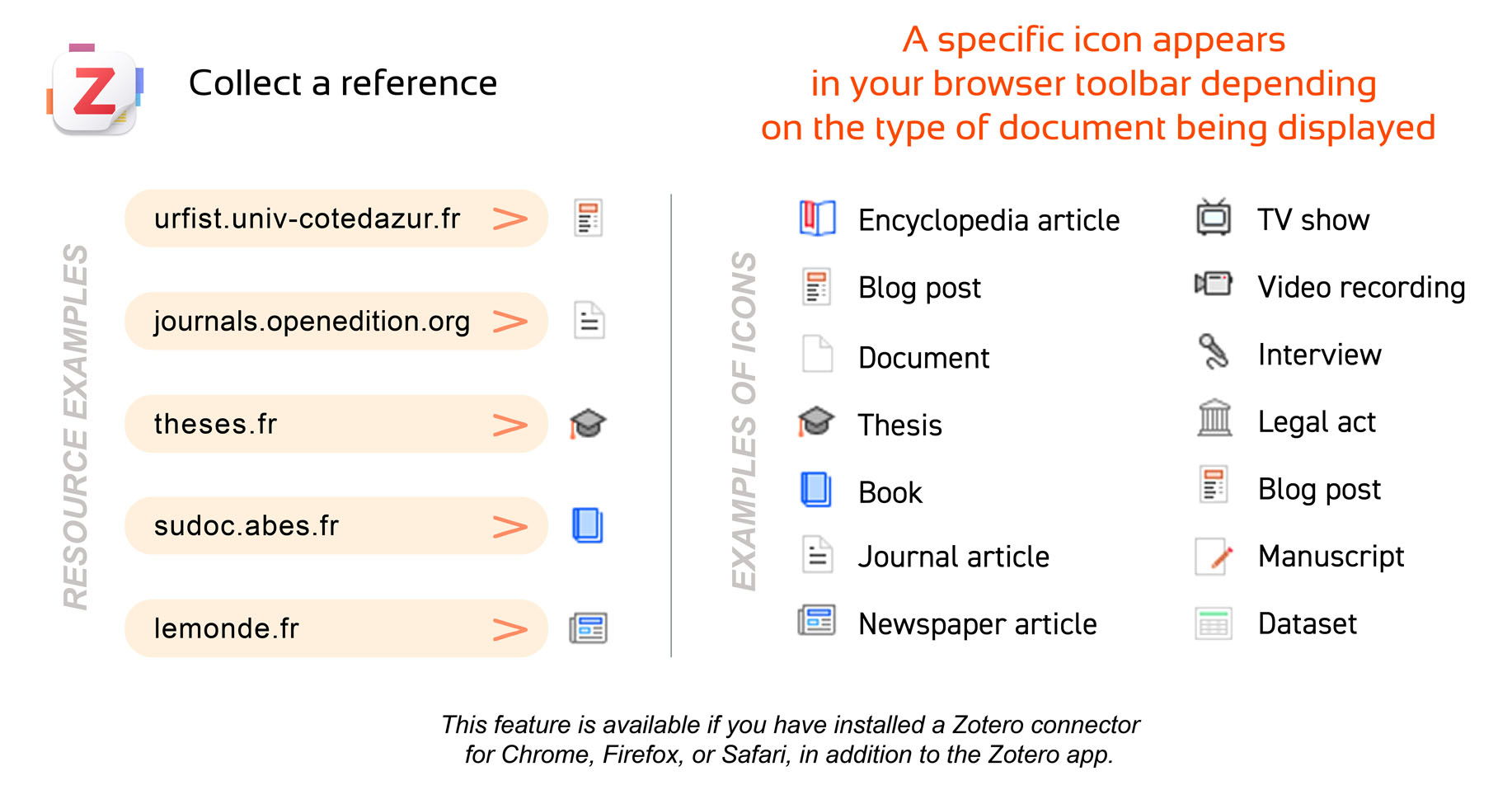
A custom icon appears in your browser toolbar depending on the type of document displayed.
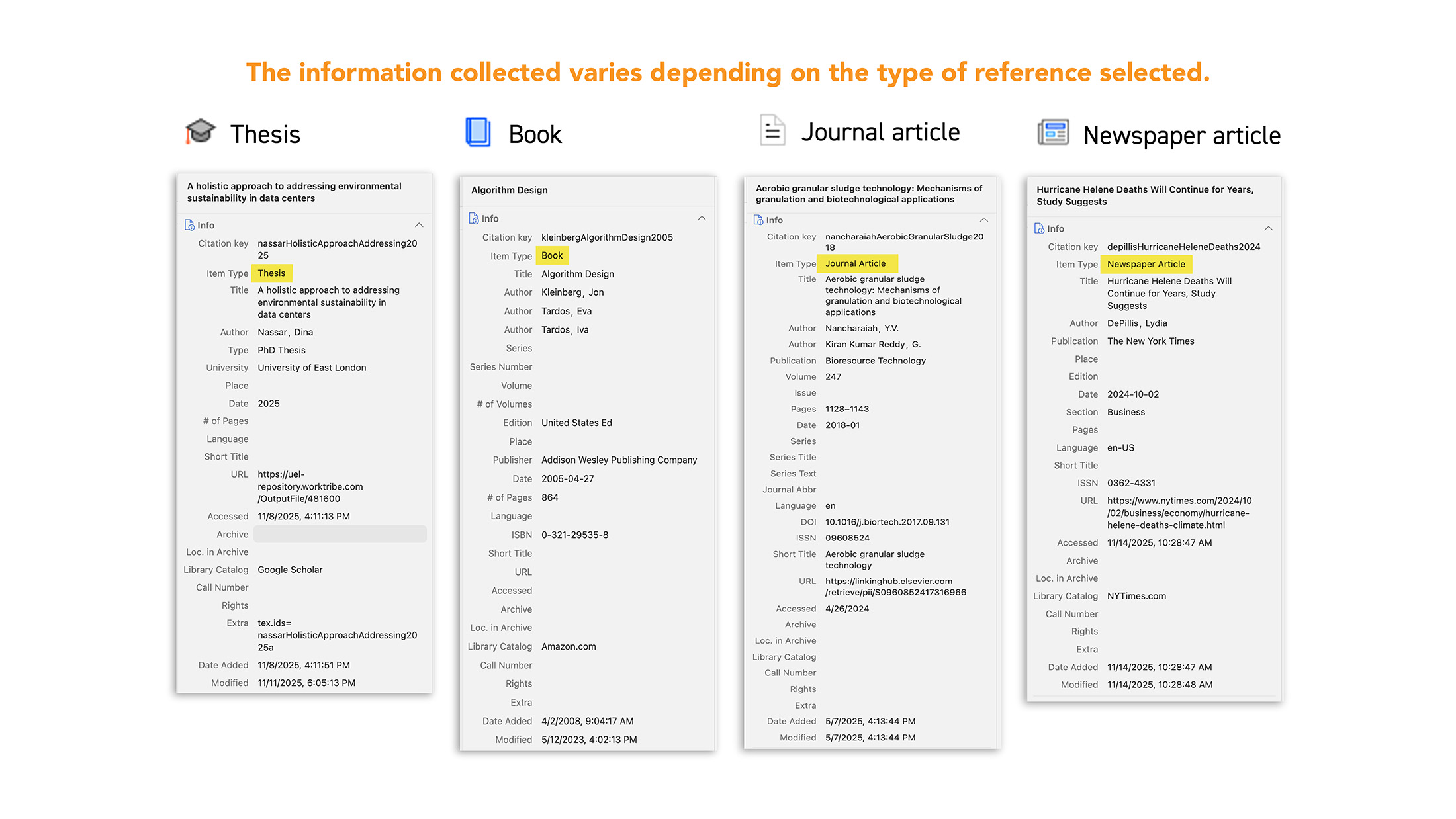
To describe more precisely what is happening in the video, here are two examples below.
-
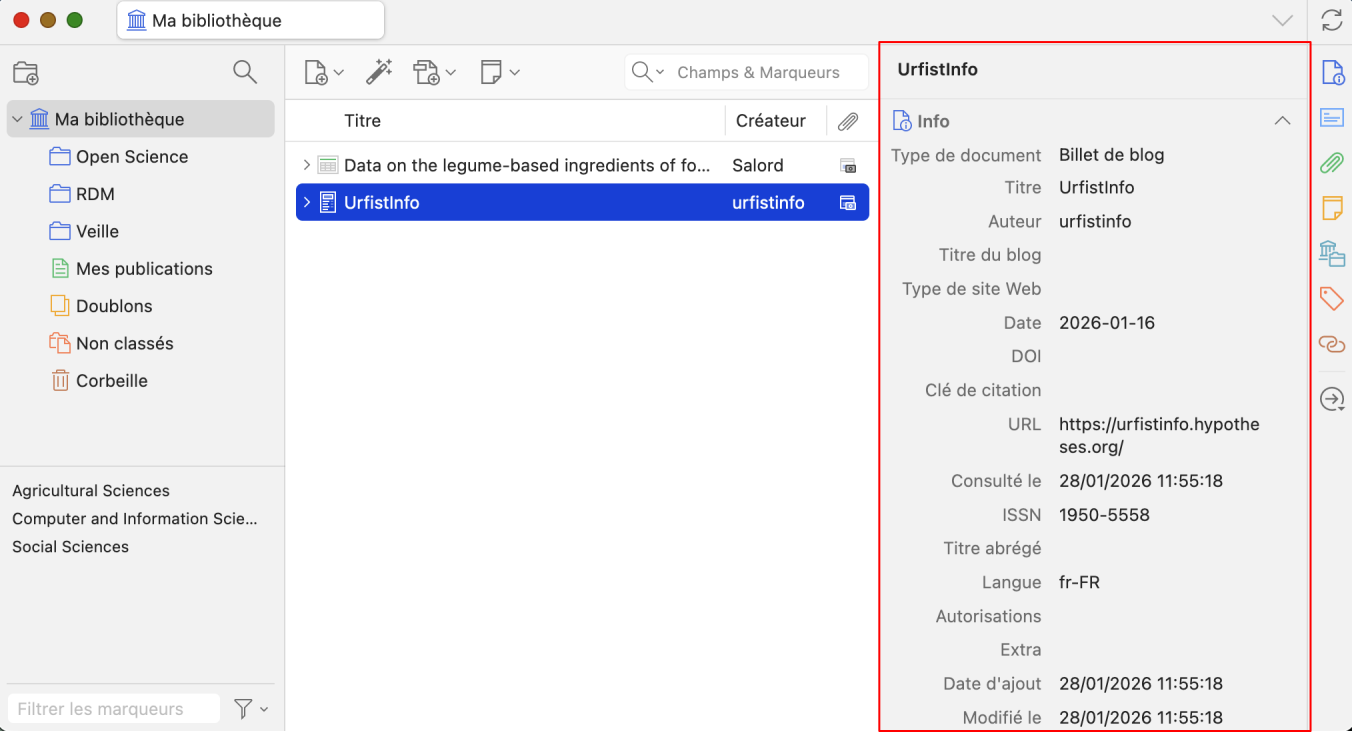
Example 1: the Urfist network blog homepage
When you visit the Urfist network blog page, the small icon indicates that it is a blog post from a web page:

By clicking on it, you add the reference to Zotero. Notice that in the right column, very few fields are filled in. However, this type of collection is useful for building a sitography/webography.
-
Example 2: Sudoc pages
When you browse the Sudoc (first example in the video), you need to search by keywords (according to your research topics). Below is an example using the keyword "serendipity".

A results list will display the first 10 bibliographic references, and page numbers will allow you to browse through the different results pages.
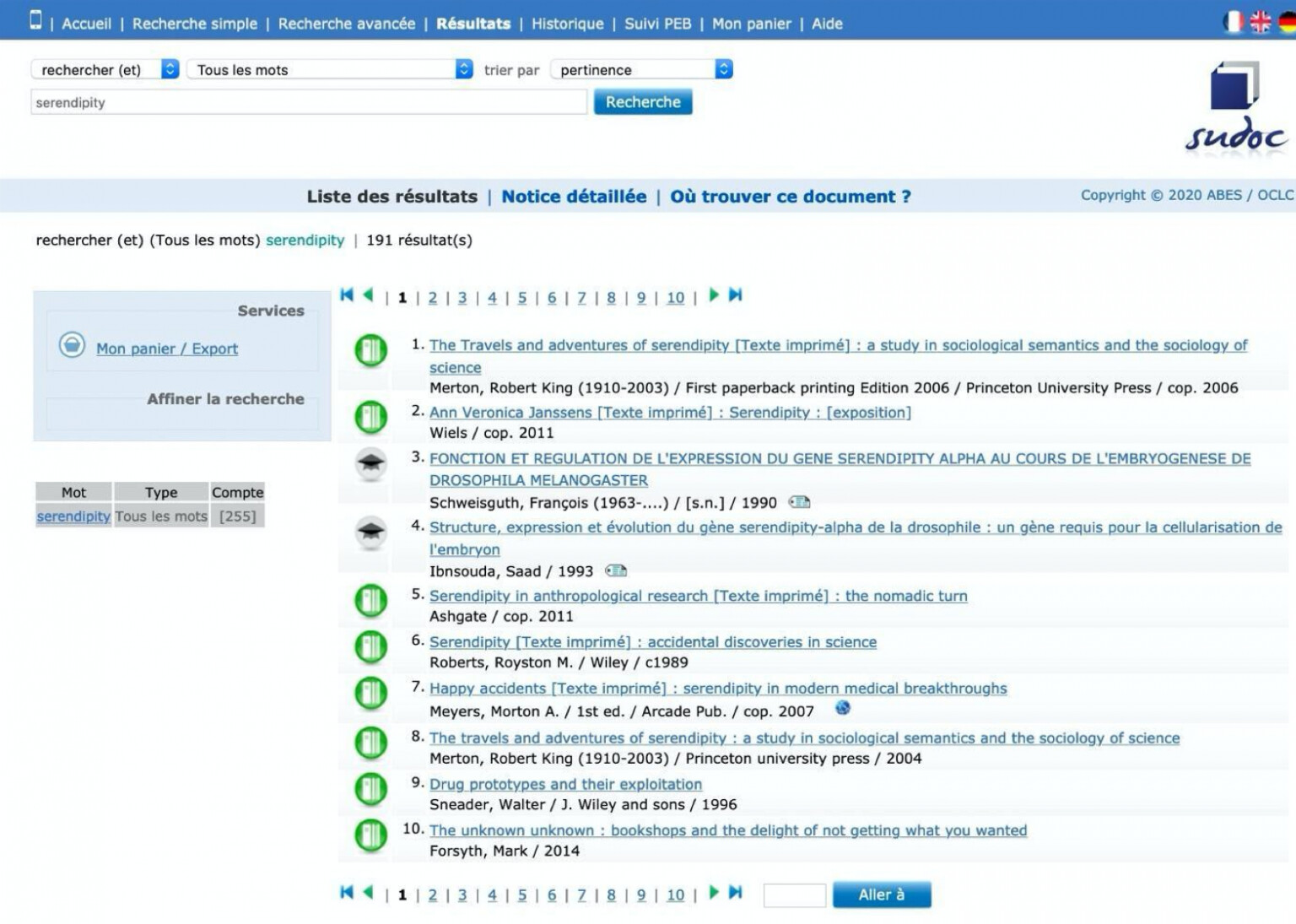
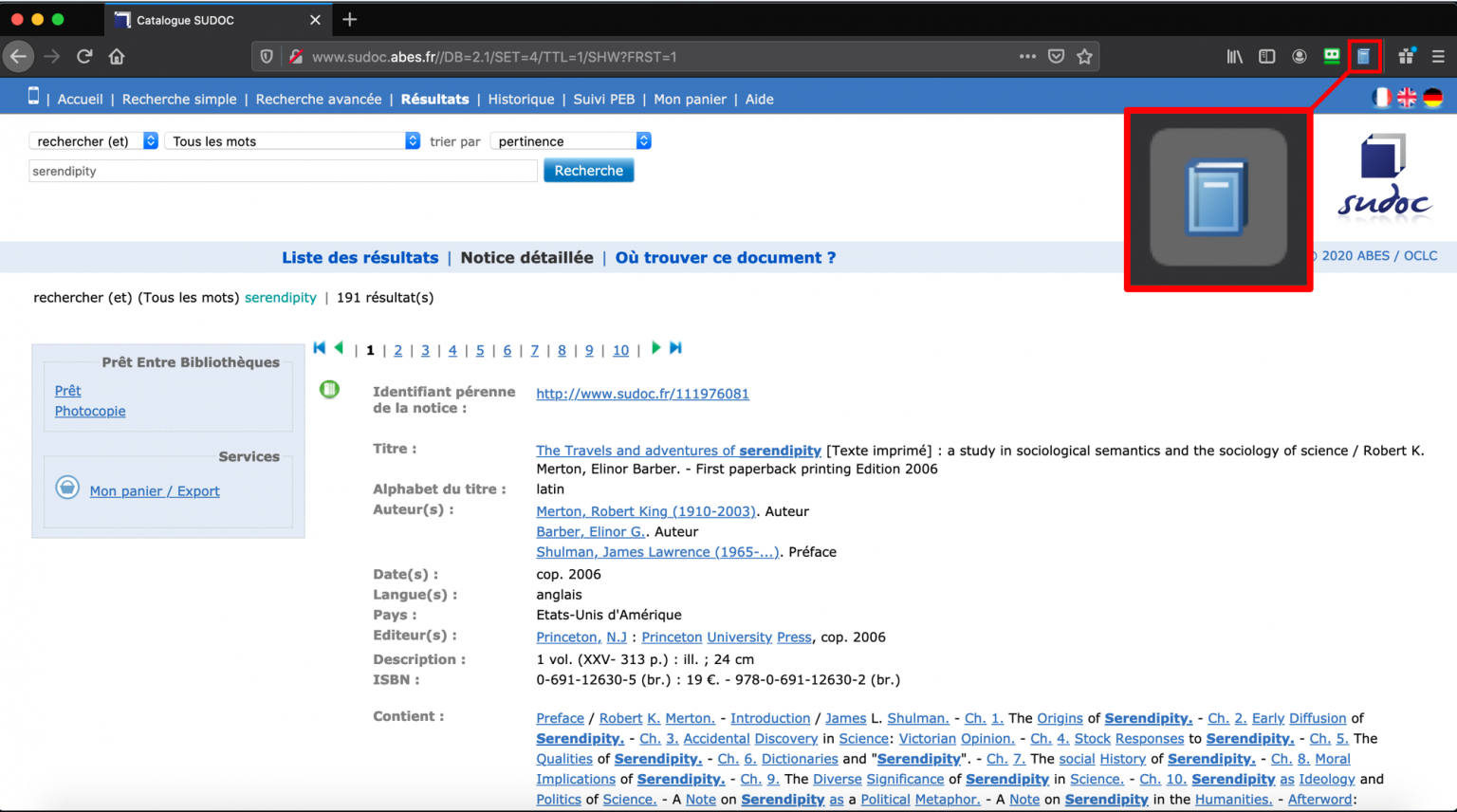
By selecting the first reference, the catalogue record for the book will appear.
You can add the book reference to Zotero by clicking on the "book" icon.
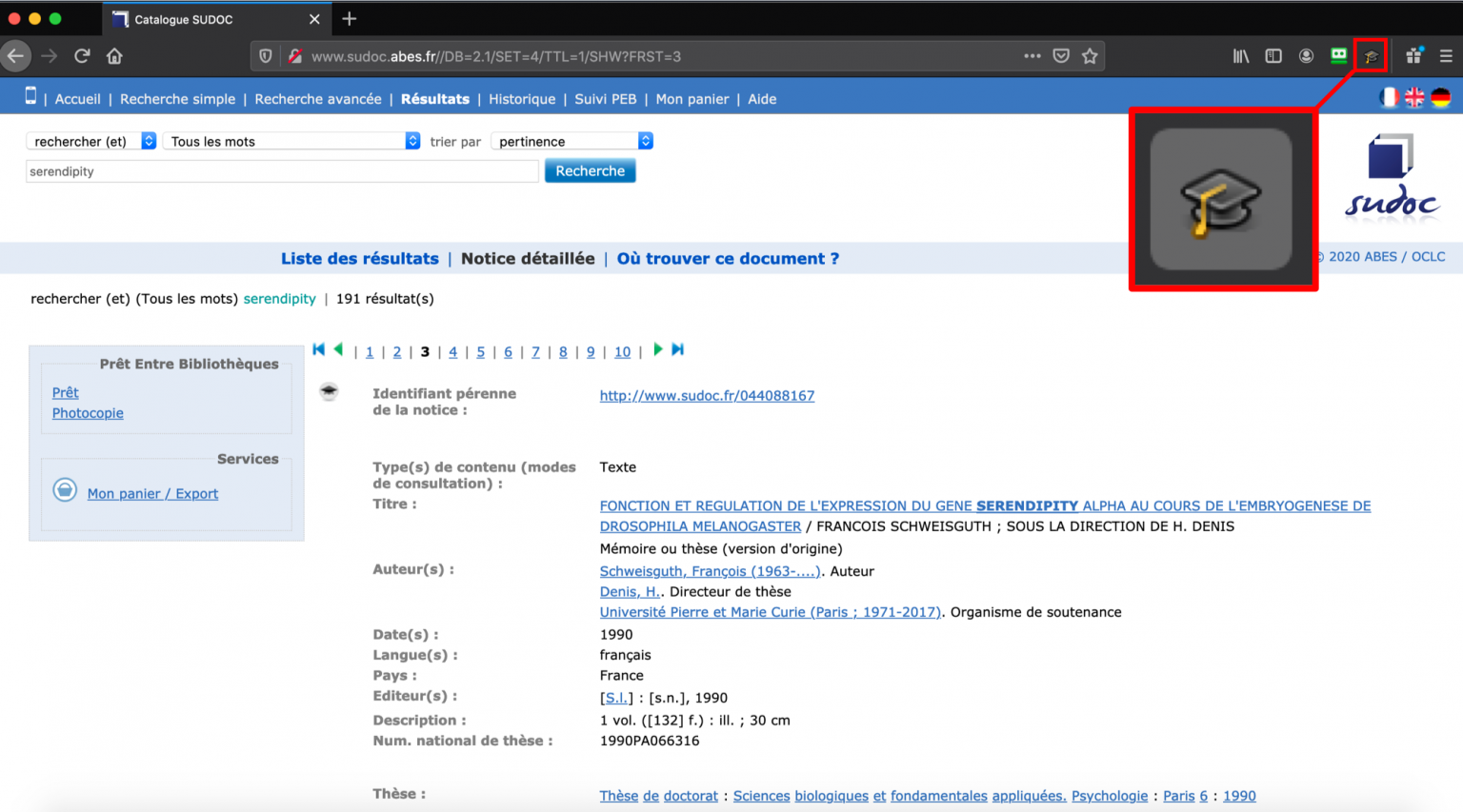
By clicking on the 3rd or 4th reference, a thesis record will appear, which you can add to Zotero by clicking on the "thesis" icon.
You can also try on HAL. Here again, the icon will change (journal articles, conference proceedings, books, etc.) depending on the type of document (i.e. the record) you are viewing.
The second example in the video uses href="https://scholar.google.com/" target="_blank" rel="noopener">Google Scholar. After performing a keyword search, Google Scholar displays the results (10 per page by default). The Zotero connector then displays a folder icon, which you need to click to open a window that lets you choose which references to add to Zotero.
-
What is not covered in the video
- Displaying a results list will generally trigger the appearance of the "folder" icon (see Sudoc above or Google Scholar in the video, but also on PubMed, HAL, and other resources that provide bibliographic references);
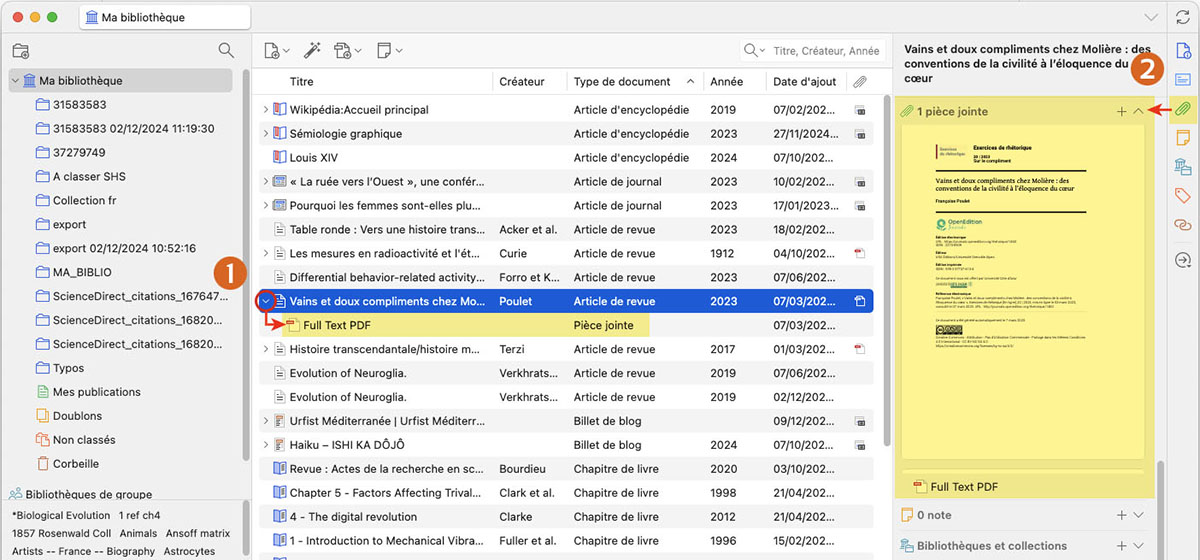
- When possible, i.e. when the resource allows it, in addition to the bibliographic reference, Zotero can also collect the full-text PDF linked to the reference. This is the case on HAL, OpenEdition, Google Scholar, and many other resources. To view the full text, click on ">" to the left of the reference (1) to expand it, or after selecting a reference, click on the attachment icon in the right-hand panel (2).
Some cases where it will not work
In most cases, Zotero will display the correct icon for collecting references. However, depending on the resources consulted, technical or commercial restrictions may prevent the collection of references and the associated full text (for example, Zotero will not work on Google, Dalloz, etc.).
Likewise, the quality of the collected references (i.e. how many fields are adequately filled in the "reference details" area) may depend on the collection method used ("folder" icon → from the results list, "document type" icon → from the individual record on the resource).
In short, you should check whether the interaction between the documentary resources you use and Zotero allows you to collect high-quality references. You may need to complete some fields manually.