
7. Create and integrate bibliographic lists
Section outline
-
Goals
- Generate bibliographic lists with preferred styles
- Generate bibliographic lists in preferred formats (rtf, html, clipboard)
- Insert citation in the text I am writing to source my argument
- Generate a bibliography at the end of a text in the preferred style
- Change the bibliographic style in my word processor
- Know that bibliographic styles format citations, footnotes/endnotes, and the bibliography at the end of the text differently
- Add bibliographic styles in Zotero
-
In a nutshell
- You can generate a list of bibliographic references from a Zotero collection or from items selected in the central column (i.e. area 3, "reference list"). This allows you, for example, to produce a list of your publications, your lab's publications, or to provide your thesis supervisor with the bibliography (or at least part of it) that defines the scope of your research topic.
- Your references can be presented in different styles. A citation style defines how the various components of a bibliographic reference are displayed (see ISO 690-2 or Z 44-005-2 standards) — for example, authors in capital letters, date immediately after the authors, volume number in bold, etc.
- You can generate the bibliography of an article (or any other type of document) from the in-text citations inserted in the document you are writing in your word processor (only Word, LibreOffice, or Google Docs can insert in-text citations with Zotero to generate the final bibliography).
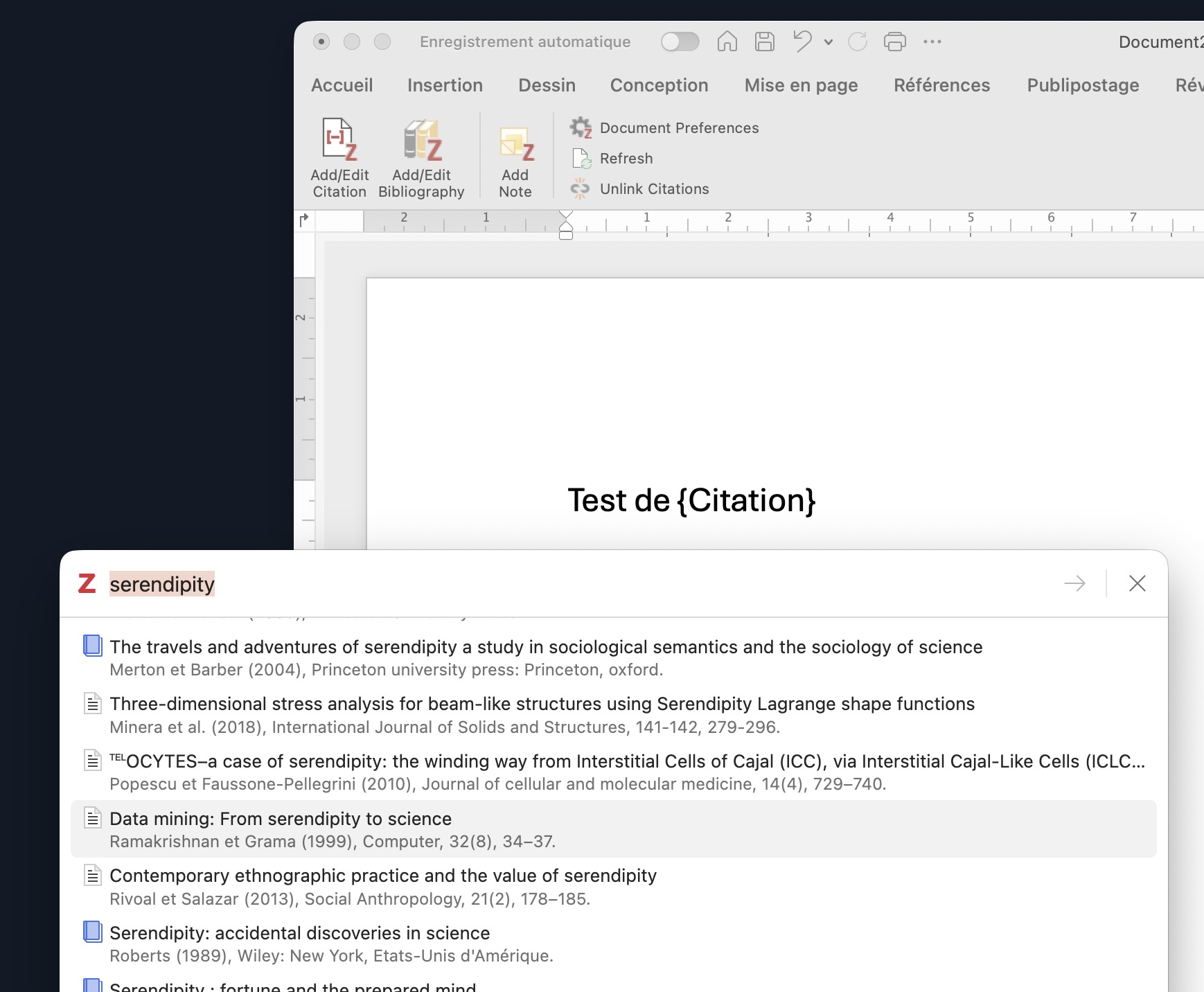
- Note that in the word processor, the Zotero menu includes an "Add Citation" button. This refers to the in-text citation, i.e. the reference(s) that support your statements or passages from one or more texts. Practices vary across disciplines.
- The reference/note insertion dialog box that appears should be considered as a window, so it may (depending on your actions) be hidden behind another window. This insertion dialog box allows you to search by keywords across all the records in your Zotero library.
By default, Zotero includes 15 citation styles. Some styles use footnotes, others list references in the order they are cited in the text, and so on — each style has its own characteristics. By visiting the Zotero Style Repository, you can import additional styles from over 10,000 available options. Simply click on the desired style, then click "OK" to add it to Zotero.